Viewing and Analyzing Chat History in SkyStudio
SkyStudio offers users a comprehensive chat-history viewing and analysis feature. This feature allows users to review their past interactions, evaluate their performance, and optimize the use of their AI assistants. Here are the details of this feature:
Viewing Chat History
Right Panel Access: Users can use the right panel to easily view their chat history.
Retention Period: Chat histories are kept for the duration of your membership, making it possible to review long-term interactions.
Analysis Features
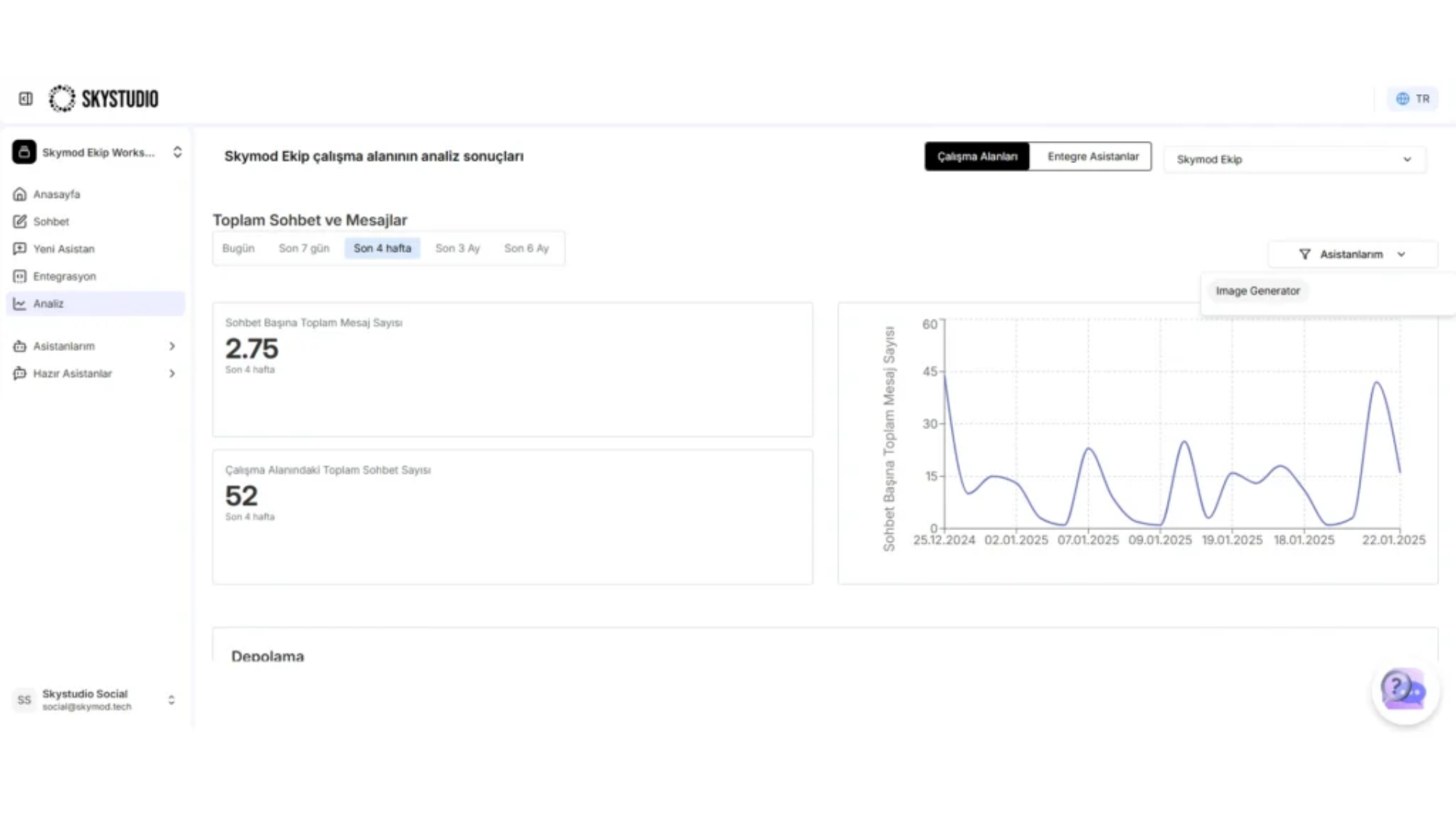
By clicking the "Analysis" section in the left panel, users can access detailed statistics:
- Workspace Selection: They can access specific data by selecting their own workspace.
- Assistant filter
- Time Range: They can view data for daily, weekly, monthly, 3-month, 6-month, and yearly periods. Metrics:
- Number of messages
- Number of chats
- Storage
41
Reviewing Workspace Analytics
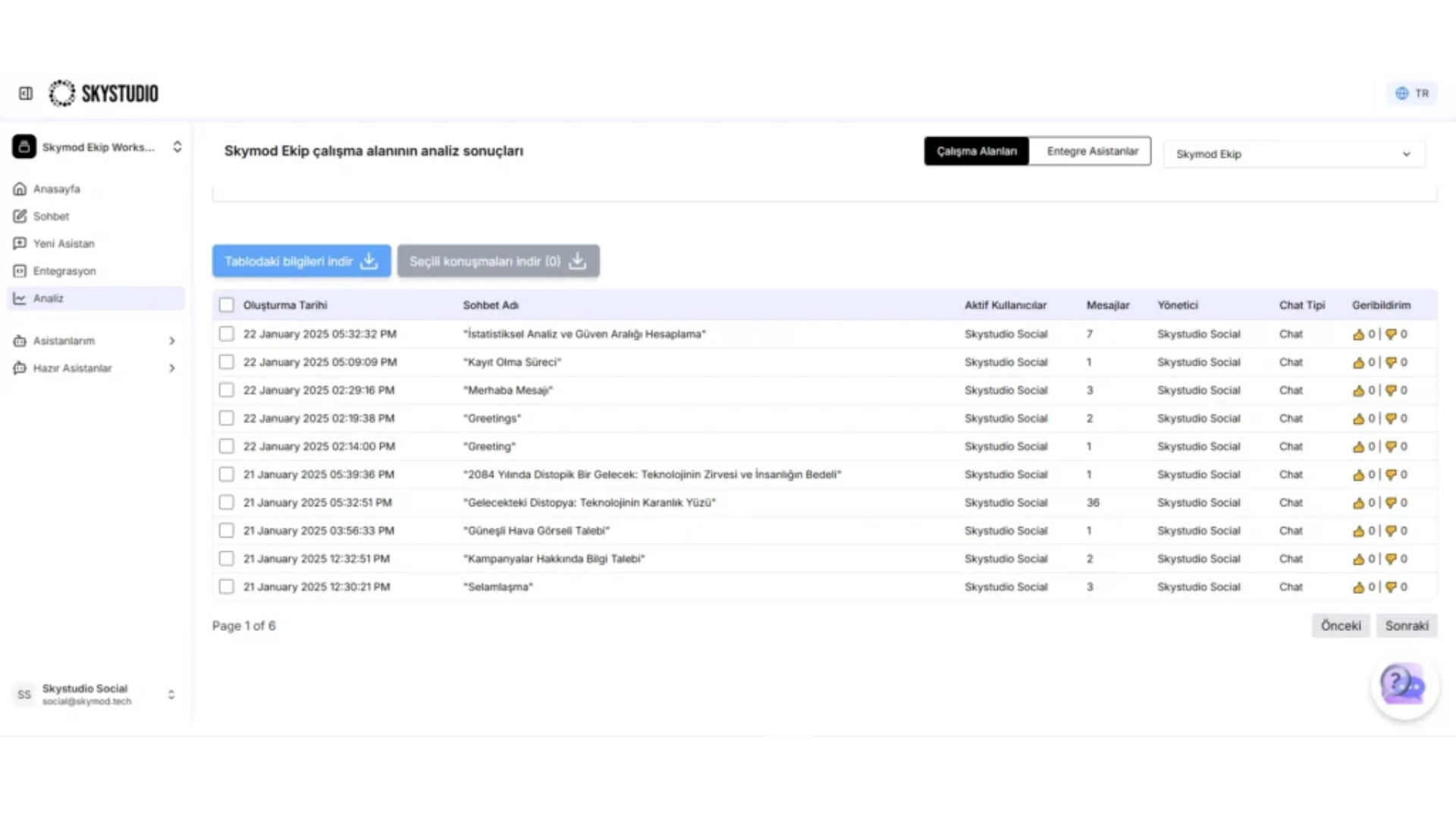
To access chats and conversations with all ready-made assistants in SkyStudio, you can follow the steps below:
- Going to the Analysis Page from the Left Panel: First, click the Analysis page in the left panel.
- Workspace Selection: On the page that opens, select the workspace you want to access.
- Accessing the Logs: After making your selection, you can access all conversations by clicking the logs located at the bottom.
- Download Option: Users can download the logs they need.
By following these simple steps, you can view all your chat history in SkyStudio.
42
- Download Option: Users can download the logs they need.
By following these simple steps, you can view all your chat history in SkyStudio.
Analysis of Distributed (Iframe, WhatsApp, etc.) Assistants
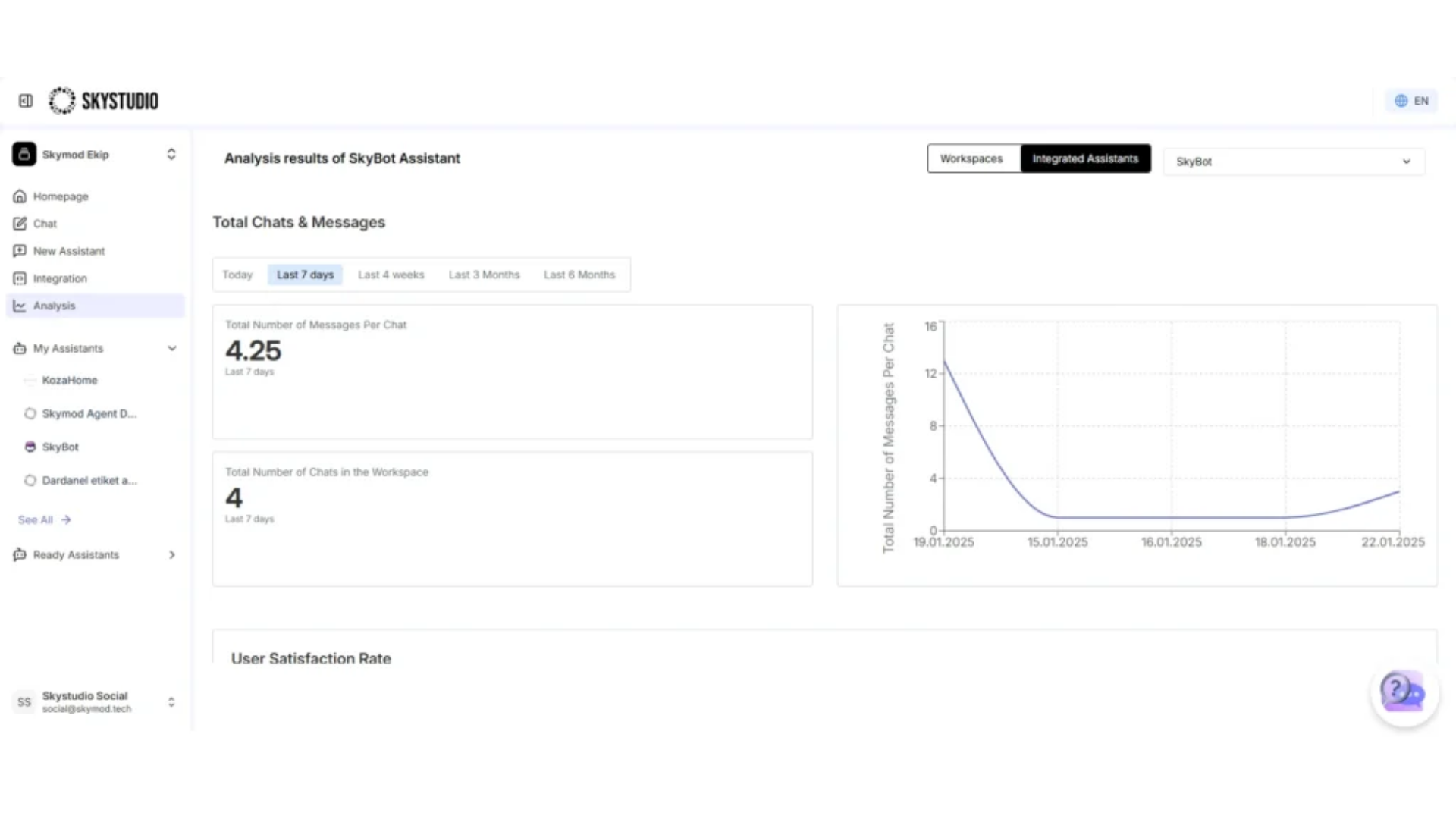
To view conversations held with assistants used externally — that is, integrated assistants:
- Select the "Assistants" option in the Analysis section.
- Identify the relevant assistant.
- Review the conversation logs belonging to the selected assistant and download them when needed.
43
Thanks to these features, SkyStudio users can:
- Evaluate the performance of their AI assistants.
- Analyze usage patterns.
- Monitor and optimize their storage.
- Examine customer interactions in depth.
- Reference past conversations when needed. These comprehensive analysis and viewing features offered by SkyStudio allow users to manage their AI assistants more effectively and optimize them according to their business needs. Regularly reviewing these analyses will provide valuable insights both for improving assistant performance and for enhancing the user experience.
Customizable Analysis Tables
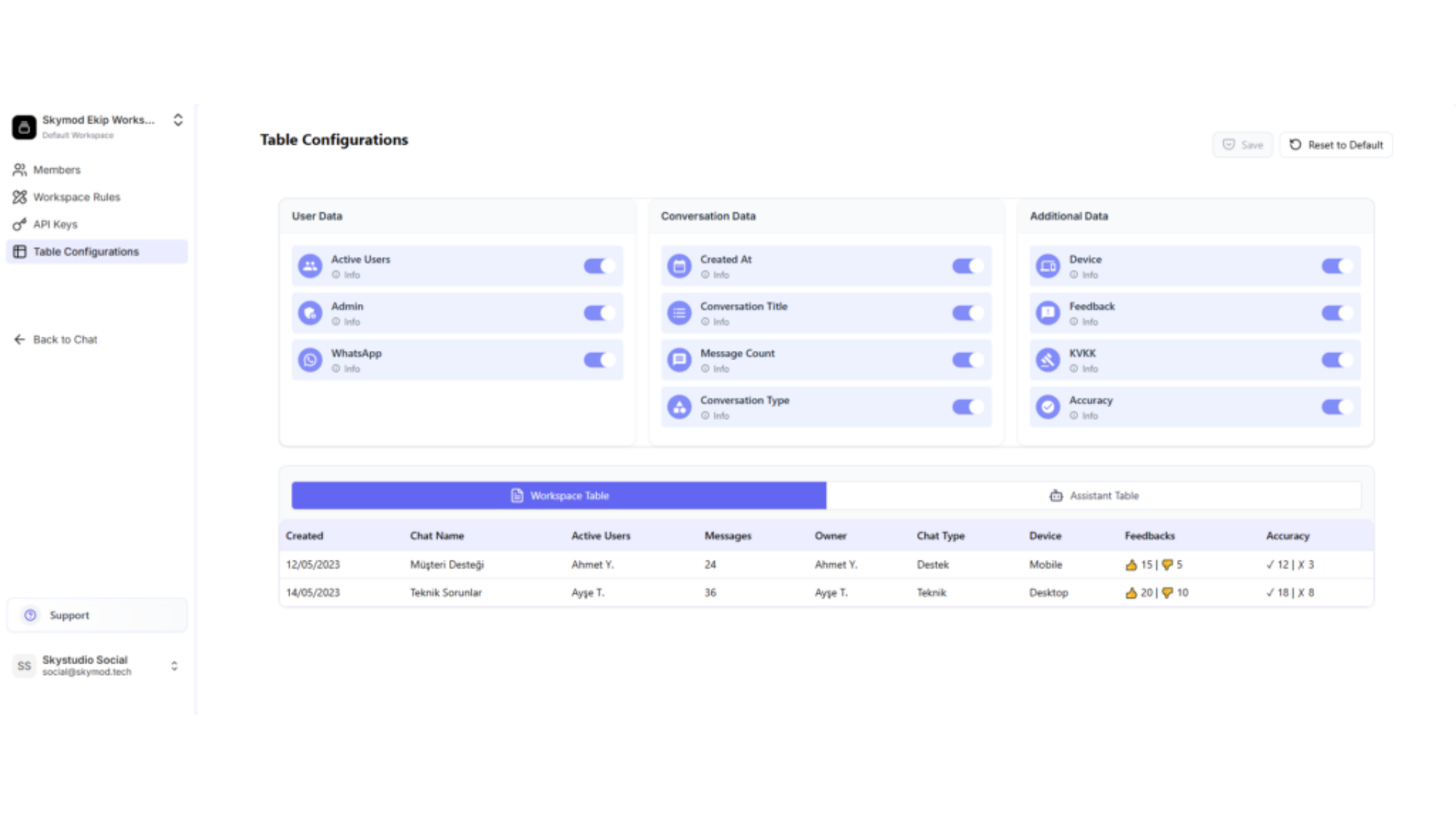
While reviewing workspace logs, you can customize your analysis table to make only the information you need visible:
- Go to the Workspace Settings section in the bottom-left corner.
- Click the Table Configuration option.
- You can customize your table view by turning the following features on and off:
- Active Users: Shows the active users in the conversation.
- Manager: Shows the manager assigned to the conversation.
- WhatsApp: Shows WhatsApp integration information.
- Creation Date: Shows the date the conversation was created.
- Conversation Title: Shows the title of the conversation.
- Message Count: Shows the total number of messages in the conversation.
- Conversation Type: Shows the type of the conversation.
- Device: Shows information about the device on which the conversation took place.
- Feedback: Shows the user feedback in the conversation.
- KVKK: Shows the KVKK consent status.
- Accuracy: Shows the accuracy-confirmation information for the conversation.
📌 You can hide or show these fields however you like!
44