SkyStudio Chat
Start Chatting with Different LLM Models by Opening a New Chat
Open a New Chat: To start a new chat on the platform, click New Chat in the left panel. You can try out different language models and train the chat with your own documents.
1. Select a Model for the Chat
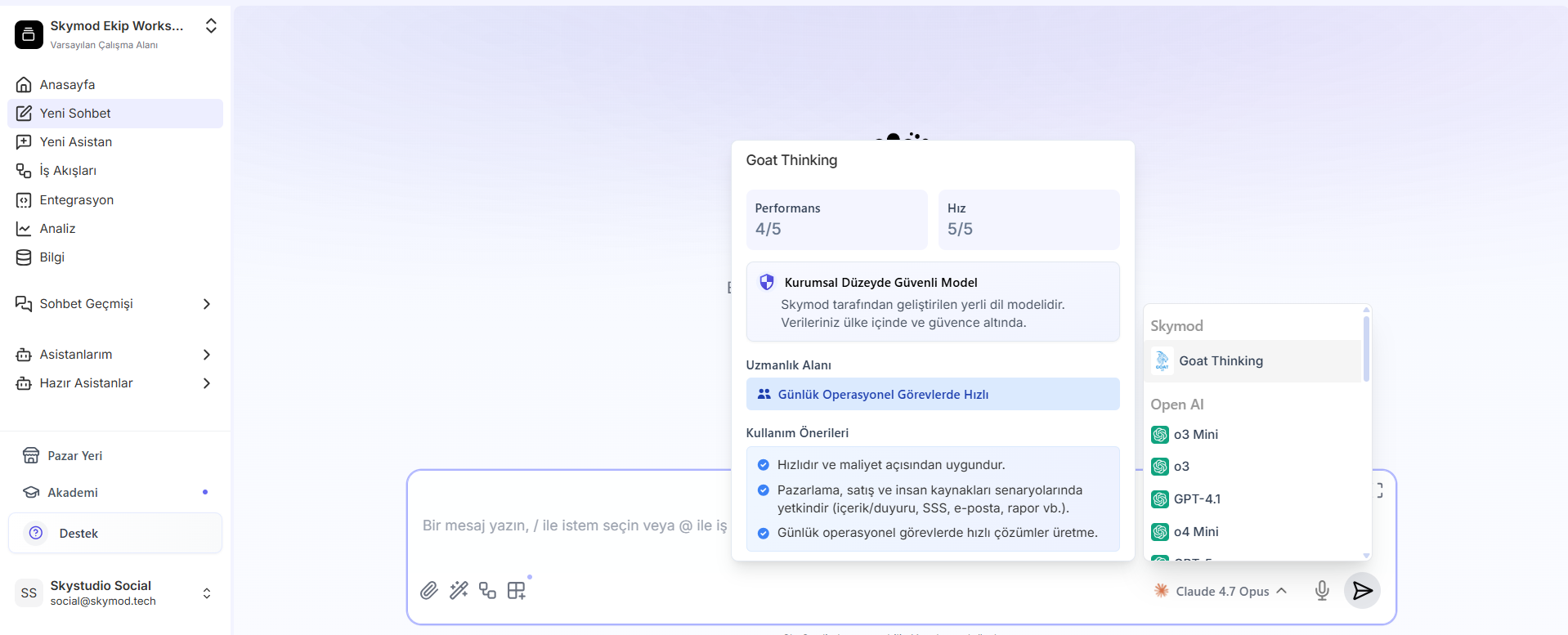
Using the model selection tool in the top-left corner, you can choose the AI model that best fits your needs. SkyStudio provides access to models from leading providers such as OpenAI, Anthropic, Meta, and Mistral. By hovering over the language models, you can view the performance of the language models in the window that appears and easily select the one that is most suitable for you.
2. Upload a Document to the Chat
You can upload files from your computer, or you can analyze table and data content directly using the Data Analysis feature.
Click the Add icon in the message bar.
- With the Upload File option, you can add documents to SkyStudio to train the chat with this content and create a longer-lasting, more customized chat experience.
- With the Data Analysis option, you can upload content such as tables and data sets to the system and perform detailed analyses on this data. Click here for detailed information about document uploading and data analysis.
3. How to Perform a Web Search in the Chat
-
Open the Chat module.
-
Type the question you want to ask in the message field. You can use Web Search in two ways:
-
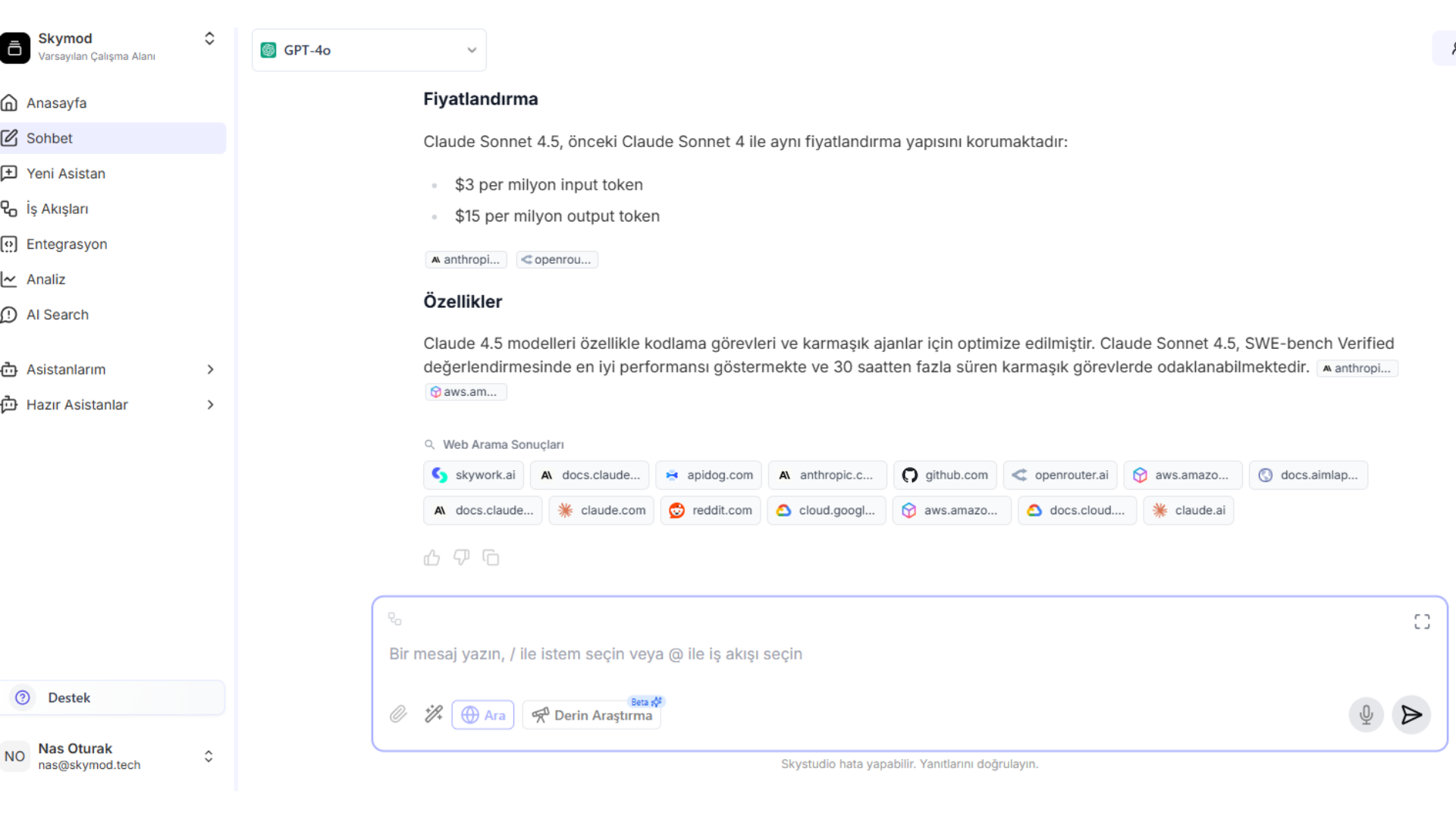
Automatic (recommended): If your topic is current (for example: "What is company X's new announcement today?", "What are the current interest rates?"), SkyStudio activates Web Search on its own when it deems it necessary and adds the source links within the answer.
-
Manual: By clicking the "Search / Web Search" button in the message bar, you can explicitly request a web search to be performed for that query. After the response arrives:
32 -
You see the summarized information in the chat bubble.
-
By clicking the links located below or within the response, you can go directly to the relevant websites,
-
This way, you both get a quick summary and can verify the source yourself within a few seconds. (Web Search description on page 7 — another variant of the same section:)
-
Web Search is a new feature that allows users to search the internet directly from the chat window.
-
By typing the word you want to search for on the chat screen and pressing the "Search" button, you can have the system search relevant websites for you.
-
With this feature, you can:
- Instantly view summarized information from searches performed on the web,
- Compare information gathered from various websites,
- Reach sources directly by clicking the relevant links.
4. Making Use of Ready-Made Prompts in the Chat
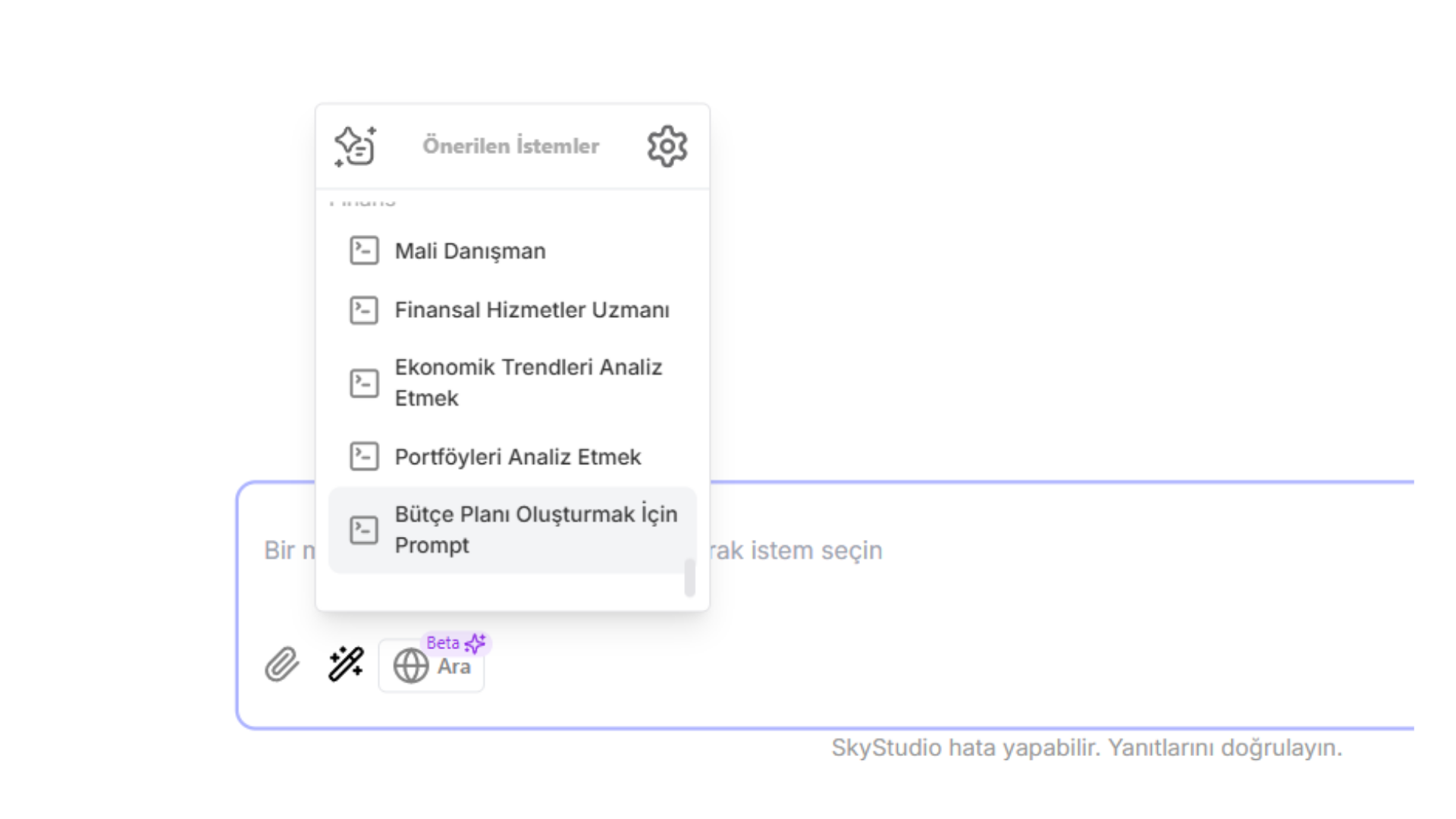
- Use Prompts: You can make use of ready-made prompts to speed up different tasks. You can edit these prompts according to your needs or save the prompts you create to your library. Click here to learn more about Prompt Management. How to Write a Prompt? Click here to learn more.
5. Talking to Assistants
- SkyStudio offers users the ability to work with two different types of assistants: Ready-Made Assistants and Custom Assistants. From the Left Panel, you can talk either to the custom assistants you have created yourself or to the ready-made assistants. All you need to do is click on them to create a new chat.
Click here for more detailed information about assistants.
34
6. Managing the Chat
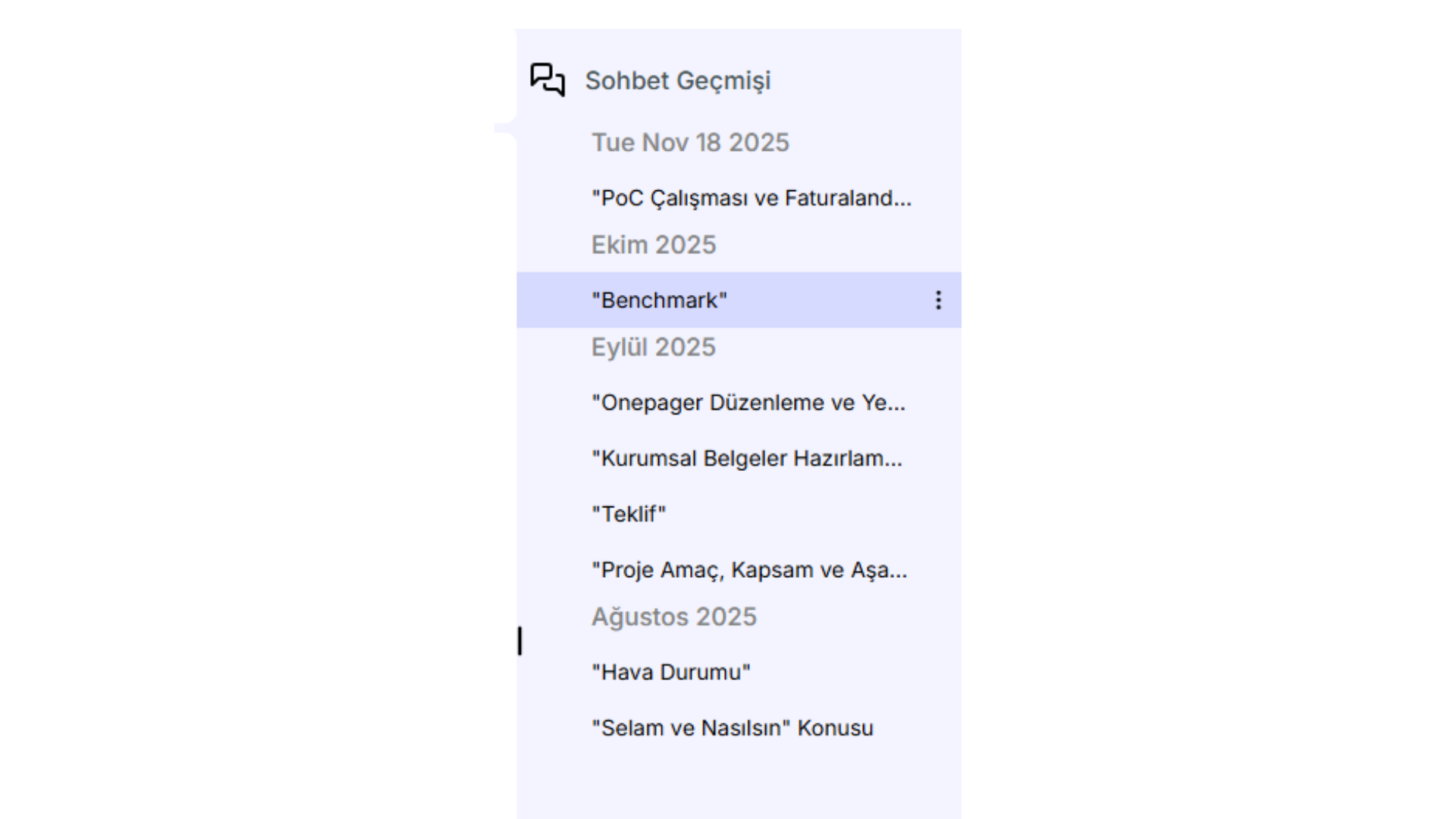
- Start Chatting: Start your chat and, when needed, invite your colleagues to share your assistants and chat history. Exporting, Renaming, or Deleting a Chat: You can keep important conversations by exporting or archiving them. By clicking the chat name at the top of the chat window, you can rename, delete, or export the chat. You can perform the same actions by right-clicking the chat histories in the right panel and clicking the 3-dot icon.
7. Keeping the Chat History
- You can analyze the data you obtain during the chat process and store it to use in your future strategic decisions.
Thanks to these steps, you can enjoy an effective and efficient chat flow experience in SkyStudio and contribute to your business's digital transformation process.
35